
App Store Screenshot Best Practices for Higher-Converting Listings
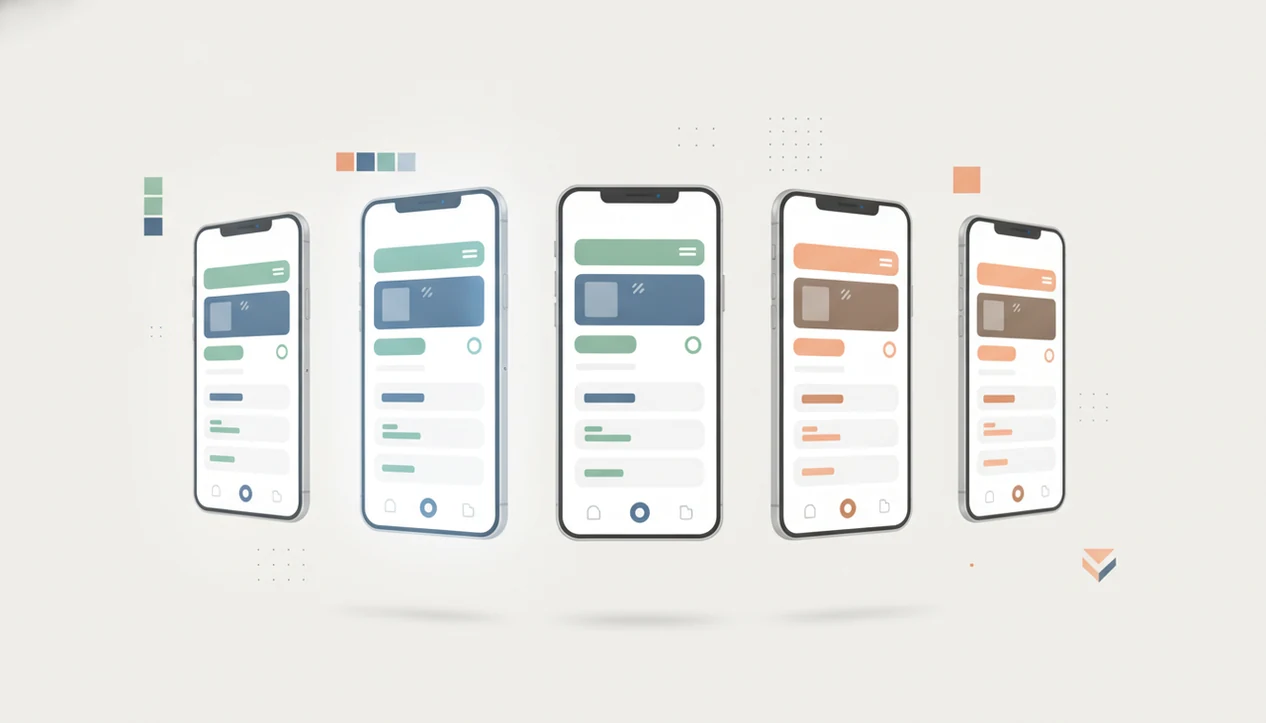
App store screenshots work best when they explain the app’s main benefit in the first few images, use clear short captions, follow Apple and Google format rules, and are tested over time instead of treated as one-time design assets.
> Definition: App store screenshots are the listing images in Apple’s App Store and Google Play that show an app interface, communicate core value, and help users decide whether to install.
- Treat screenshots as a mini landing page: lead with the primary user benefit, not a random feature tour.
- Design separately for Apple App Store, Google Play, device types, and localizations because screenshot limits and specs differ.
- Test screenshot order, captions, and visual hierarchy regularly because the best layout depends on category, audience, and product promise.
How app store screenshot best practices look
Side-by-side captures of the compared products. Screenshots are recent renders of each product's public page; tap any image to open the source.
App Store Screenshots at a Glance
- App store screenshots are marketing, UX, and ASO assets, not decorative images added after the build is finished.
- Apple allows 1–10 screenshots per localization, while Google Play allows up to 8 screenshots per device type, with store-specific requirements.
- The first 1–3 screenshots carry the most weight because users often see them in search results and small-screen browsing before opening the full listing.
- Screenshot text, order, and design should be tested against your audience, not copied from the app sitting above you in category rank.
- Smartphone ownership makes mobile-first discovery the default context: Pew Research Center reported that 90% of U.S. adults owned a smartphone in 2024 (Pew Research Center).
A founder checking keyword rank in a spreadsheet before coffee may notice a term move from position 18 to 23. The screenshot set still has to convince the next searcher who sees the listing.
What App Store Screenshots Are
App store screenshots are the gallery images in a store listing that show the app interface, explain the product promise, and support the user’s install decision.
What are App Store screenshots? They are the images users swipe through on Apple’s App Store or Google Play before tapping Get or Install. They usually begin with real screens from the app, then add captions, background colors, device frames, or callouts.
Raw screen captures can work for very obvious products, but most apps need more structure. A blank dashboard, a settings page, or a dense chart rarely explains value by itself.
Designed screenshot panels make the hierarchy clearer. They tell the user what problem the app solves, which feature matters first, and whether the interface looks credible enough to try.
Independent guides on mobile app product, growth, app store discovery, shipping, and industry trends should deliver policy-aware decisions and practical checklists, not agency jargon or store-ranking folklore.
How App Store Screenshots Work in Discovery
App store screenshots work by turning a listing visit into a quick visual scan: icon, title, rating, first images, then deeper copy if the user is still interested.
In search results and listing pages, screenshots act as a conversion surface. Users often judge the app before reading the long description. The first frame needs to explain the main job fast, especially on a phone where caption text gets small.
Store systems also increasingly interpret visual content. On-image text is not a substitute for metadata, but it can reinforce the same product language used in titles, subtitles, and keyword fields. That connection matters for app store discovery.
Expectations continue after install. If screenshots promise “AI meal plans in 30 seconds” and the app opens to a five-step setup wall, activation suffers. Better screenshots cannot rescue weak ratings, broken flows, or claims the app cannot meet.
The pocket-sized scan is unforgiving.
Apple and Google Play Screenshot Requirements Before Design
Before design starts, collect the approved positioning, current app builds, device sizes, brand colors, caption copy, and localization plan. Screenshot work gets messy when teams export files before agreeing on the promise.
Use Apple’s current screenshot specifications before export (Apple Developer documentation) and Google Play’s preview asset requirements before upload (Google Support).
| Area | Apple App Store | Google Play |
|---|---|---|
| Screenshot count | 1–10 per localization | Up to 8 per device type |
| Planning unit | Device display sizes and localizations | Phone, tablet, Chromebook, and other device-type galleries |
| Review risk | App Store Connect rules and review guideline fit | Play Console asset rules and policy fit |
| Workflow need | Export discipline and naming conventions | Store-specific variants and device coverage |
Apple App Store screenshot basics
Check current App Store Connect specifications before export. The yellow warning banner before review is a useful reminder that a build train can stall over assets, not just binaries.
Google Play screenshot basics
Check Google Play requirements by device type before uploading. A Play Console pre-launch report screenshot with red accessibility and crash markers should also change what you decide to show.
Small teams should use reusable templates, file naming conventions, and version control. It saves the Friday rebuild.
How to Use App Store Screenshots Strategically
Use app store screenshots strategically by mapping each image to a specific install reason, then revising the gallery with performance data.
- Set the primary install promise and target user. Define who the app is for and what they should believe after three seconds.
- Map the first 1–3 screenshots to the strongest benefits. Lead with outcome, not navigation.
- Capture real app screens and add concise captions. Keep captions short enough to read on a magnified phone screen showing tiny caption text.
- Export store-specific sizes and localizations. Build separate assets for Apple, Google Play, device types, and app localization.
- Review performance data and test new variants. Tie tests to qualified installs, retention, and reviews, not only listing taps.
For early-stage teams, a five-step screenshot workflow is often easier than a full creative sprint because it forces positioning, design, export, and testing into one repeatable loop.
Best App Store Screenshot Design Practices
Strong app store screenshot design starts with benefit-first captions, readable hierarchy, and a clear story across the gallery.
- Primary value first. The first screenshot should explain the main value proposition before the user swipes. “Plan workouts in 10 minutes” is clearer than “Dashboard.”
- Readable caption system. Use short, specific text with enough contrast for small screens. If the caption needs a pinch-zoom, rewrite it.
- Visual hierarchy. Balance whitespace, typography, device frames, and brand colors so the app screen remains the subject.
- Gallery story arc. Move from problem, to value, to proof, to feature depth, to trust.
Avoid crowded layouts, tiny legal text, exaggerated claims, and feature dumping. The cramped release note field already forces teams to explain a bug fix without promising a feature that is not live. Screenshot copy needs the same discipline.
For competitive review, compare Power Themes notes with appfigures, Sensor Tower, MobileAction, and data.ai; treat competitor screenshot galleries as hypotheses to test, not templates to copy.
App Store Screenshot Testing and ASO Signals
Screenshot optimization is iterative. A one-time upload usually misses changes in audience behavior, feature priority, category norms, and store presentation.
For screenshot testing specifically, Google Play’s Store Listing Experiments documentation supports testing listing assets such as graphics and descriptions before rolling out changes broadly (Google Support).
Test one major variable at a time: screenshot order, caption angle, background color, first-frame benefit, or device framing. If everything changes at once, the weekly growth meeting in a glass room becomes guesswork with prettier slides.
On-image text should serve both human comprehension and store interpretation. Align screenshot captions with metadata where it is honest, and connect findings to app store optimization, qualified installs, retention, and review quality.
Screenshot tests usually work best when the app already has a stable listing baseline, while larger redesigns fit teams changing positioning, audience, or core features.
Common App Store Screenshot Mistakes
The most common mistake is treating screenshots as decoration. They are part of the install argument, and weak galleries leave users guessing.
Reusing the same screenshots across Apple, Google Play, devices, and countries can fail for several reasons. Specs differ. Cropping differs. Local expectations differ. A caption that works in English may become unreadable after German or Japanese localization.
Raw, uncaptioned screen grabs are another common problem. They can look honest, but they often fail when the value proposition is not obvious from the interface alone.
Misleading promises create a worse failure pattern. They may increase installs briefly, but disappointed users churn, leave poor reviews, and weaken trust signals. That damage connects directly to app ratings strategy.
Screenshots also go stale after UI changes, new features, seasonal campaigns, pricing shifts, or policy updates. The dull routine still matters: Apple Developer documentation in one tab, Google Play policy in another, then metadata changes.
App Store Screenshot Launch Checklist
Are your app store screenshots ready to publish? Use this checklist before submitting a new listing, release, or creative refresh.
- Confirm store-specific dimensions, file format, device type, and localization requirements.
- Preview every screenshot on a small phone screen, not only a desktop design canvas.
- Check that each caption matches the current app UI and actual user experience.
- Verify that the first three screenshots explain the strongest user benefit.
- Review exported file names, source design files, stakeholder approvals, and the next testing date.
- Compare screenshot language against the title, subtitle, short description, and keyword plan from app store keyword research.
- Keep a record of what changed, when it shipped, and which metric should move.
Launch day chat full of screenshots is useful only if someone owns the final QA pass. Assign that owner before the binary upload progress bar starts crawling.
Limitations
App store screenshots can improve clarity and conversion, but they cannot guarantee installs or store ranking outcomes.
- There is no universal best screenshot formula because categories, audiences, devices, and countries differ.
- Copying competitor layouts can backfire without audience-specific testing.
- Over-optimized or exaggerated screenshots can create disappointed users, lower retention, and worse reviews.
- Screenshots are constrained by icon quality, ratings, reviews, title, pricing, product quality, and store ranking dynamics.
- Apple and Google Play requirements can change, so outdated specs may cause rejection or poor rendering.
- AI tools and screenshot generators can speed production, but they cannot replace positioning, hierarchy, brand judgment, or QA.
- A beautiful gallery will not fix a confusing onboarding flow or a product that crashes on common devices.
In practice, screenshots are one part of the listing system. Power Themes treats them as a repeatable product and growth decision, not a magic lever.
FAQ
What are App Store screenshots?
App Store screenshots are store listing images that show the app interface and communicate the app’s value. They help users decide whether to tap Get or Install.
How many screenshots can I upload to Apple’s App Store?
Apple allows 1–10 screenshots per localization in App Store Connect. Check current App Store Connect specs before export because size and device requirements can change.
How many screenshots can I upload to Google Play?
Google Play allows up to 8 screenshots per device type, with typical minimums depending on the device category. Check Play Console requirements for phone, tablet, and other supported form factors.
Which app store screenshots matter most?
The first 1–3 screenshots usually matter most because users see them first in search results and mobile browsing. They should explain the strongest benefit before secondary features.
Should app store screenshots include text?
Yes, short benefit captions often improve comprehension when they are readable and specific. Avoid crowded text that hides the real interface or makes unsupported claims.
Can I reuse iPhone screenshots for Google Play or Android devices?
Reusing iPhone screenshots for Google Play or Android devices can create formatting, policy, and audience-fit problems. Build store-specific and device-specific variants when possible.
Do app store screenshots affect ASO?
Screenshots mainly affect conversion, but they may also support ASO through on-image text and user engagement signals. They should align with metadata without stuffing keywords.
How often should app store screenshots change?
Update app store screenshots after major UI changes, new positioning, important feature launches, seasonal campaigns, or poor test results. Power Themes generally recommends setting the next review date before publishing the current set.